How to Update Your LinkedIn Profile Picture Without Notifying Everyone
Make Profile Updates Quietly: A Step-by-Step Privacy Guide
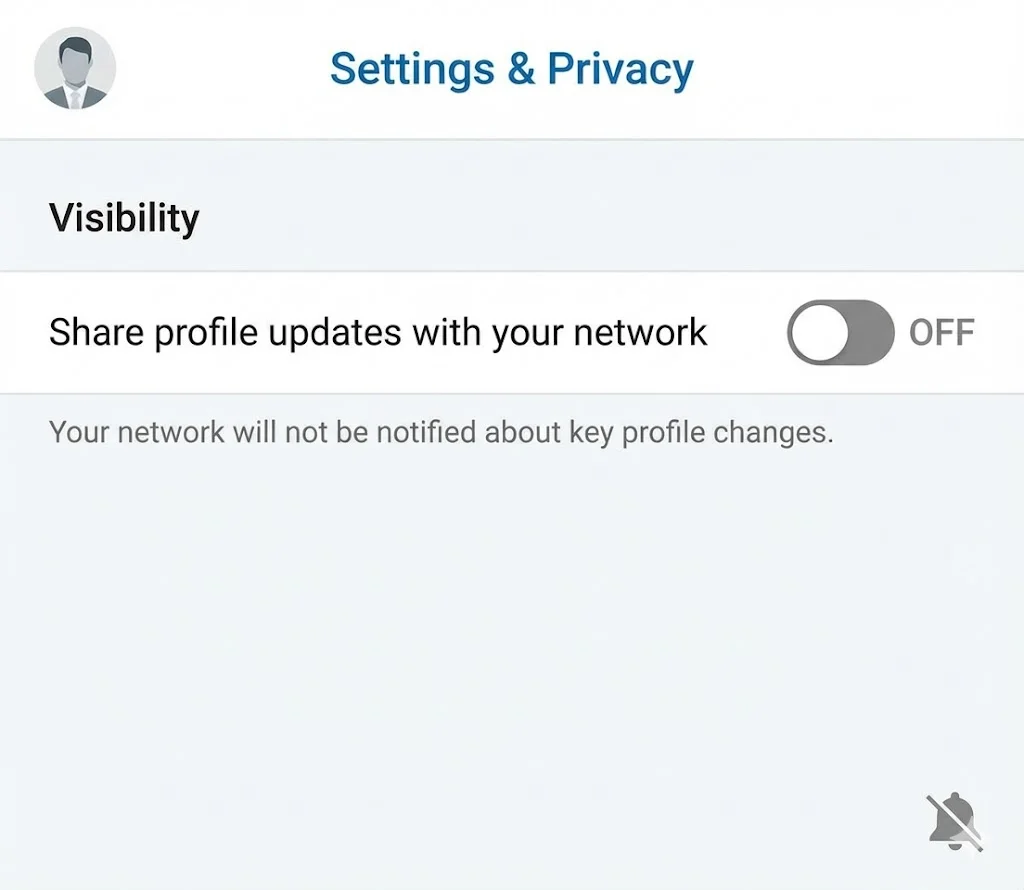
You want to update your LinkedIn profile picture, but you don't want to spam your entire network with a notification. Maybe you're just testing a new photo, making a minor adjustment, or simply prefer to update your profile without broadcasting the change to hundreds of connections. You're not alone-this is one of the most common questions LinkedIn users ask.
The good news: LinkedIn provides ways to update your profile quietly. The challenge: LinkedIn has changed these settings multiple times, and the process isn't always intuitive. This comprehensive guide will walk you through exactly how to update your profile picture without notifying your network, explain when you might want notifications on or off, and share pro tips for managing your LinkedIn privacy overall.
Important Note: LinkedIn's interface changes frequently. This guide reflects the current interface as of 2026, but specific button locations may vary. The underlying principles and privacy settings remain consistent.
From the Creator: This is one of the most common questions I receive from Frame Generator users. After helping thousands of professionals update their profile pictures with custom frames, I've refined this guide to address every scenario and edge case you might encounter.
Understanding LinkedIn Profile Change Notifications
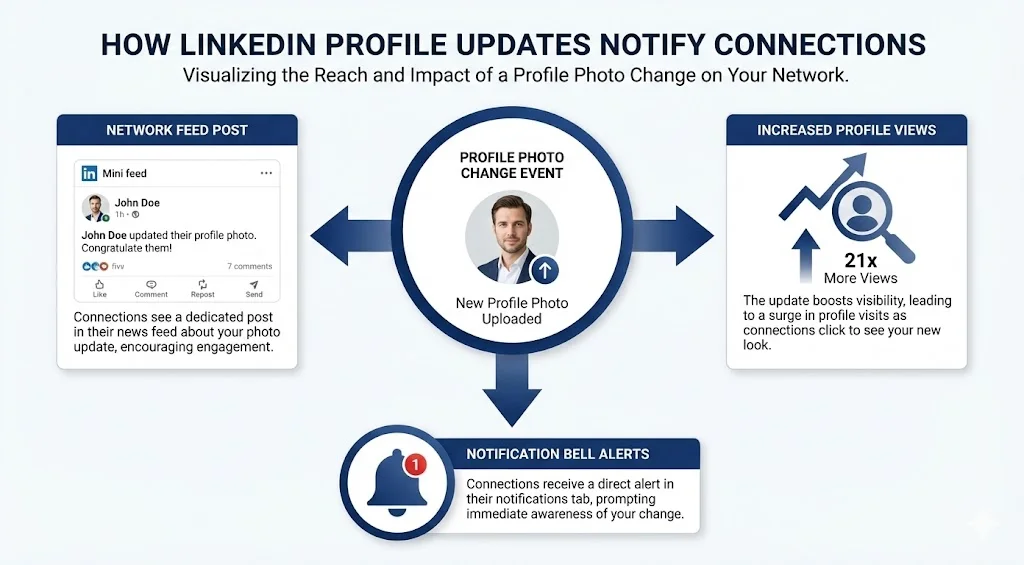
When you update your LinkedIn profile picture (or other profile sections), LinkedIn can notify your connections in several ways:
- Network Feed Post: An automatic post appears in your connections' feeds announcing your profile update, including showing your new picture.
- Profile View Increase: Even without a feed post, profile updates typically trigger increased profile views as LinkedIn algorithms surface updated profiles.
- Notification Icons: Some connections may receive notification bell alerts about your profile change.
The key setting that controls most of this is called "Share profile changes with your network"-and you'll want to turn it OFF before making updates.
Method 1: Turn Off Profile Change Sharing (Recommended)
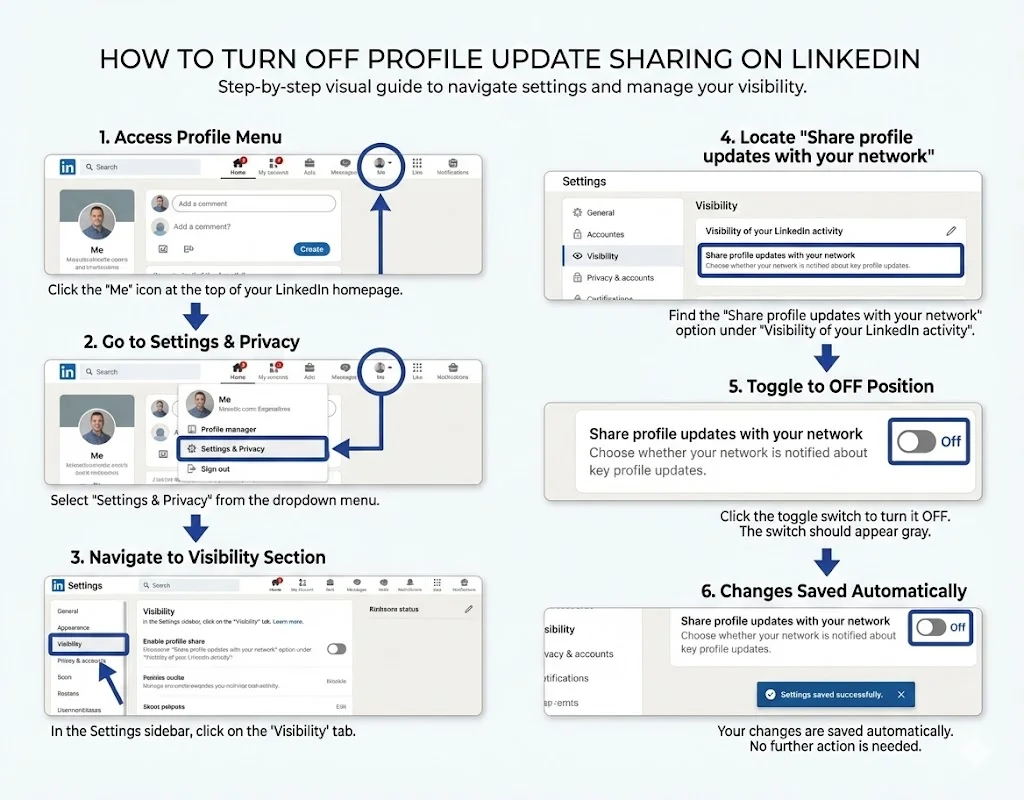
This is the most reliable way to update your profile picture quietly:
- Click on your profile picture icon in the top right corner of LinkedIn
- Select "Settings & Privacy" from the dropdown menu
- You'll be taken to your settings page
- In the left sidebar (or top tabs on mobile), click "Visibility"
- This section controls who can see your profile and activity
- Scroll down to "Visibility of your LinkedIn activity"
- Look for "Share profile updates with your network" or Share job changes, education changes, and work anniversaries from profileor similar wording
- Click on this setting to expand it
- Toggle the switch to OFF (it may be blue when on, gray when off)
- You should see confirmation that sharing is disabled
- This setting will remain off until you turn it back on
- Now navigate back to your profile
- Click the camera/edit icon on your profile picture
- Upload your new photo
- Adjust position/framing as needed
- Click "Save" or "Apply"
- Return to Settings & Privacy > Visibility
- Turn "Share profile updates" back ON if you want future updates to be shared
- Or leave it off if you prefer all updates to be private
Pro Tip: Take screenshots of the settings before changing them so you can easily find your way back to re-enable sharing later.
Method 2: LinkedIn Profile Picture Frame Trick
Some users report that adding a frame to your profile picture (using tools like Frame-Generator.com) and uploading the framed version triggers fewer notifications than changing the base photo. While not officially documented by LinkedIn, the theory is that the system sees it as a minor modification rather than a complete profile picture change.
How to use this method:
- Download your current LinkedIn profile picture
- Add a subtle frame or border using Frame-Generator.com
- Upload the framed version (with sharing still enabled)
- Monitor whether a notification is posted
Note: This method is less reliable than Method 1 and may not consistently prevent notifications. Use Method 1 for guaranteed privacy.
Method 3: Mobile App Settings
The LinkedIn mobile app has similar settings, accessed slightly differently:
- Tap your profile picture in the top left
- Tap "Settings" (gear icon in top right)
- Scroll to "Visibility" section
- Tap "Visibility of your LinkedIn activity"
- Toggle off "Share profile updates with your network"
- Navigate to your profile and update picture
- Return to settings to re-enable if desired
What Gets Shared (and What Doesn't) With Settings Off
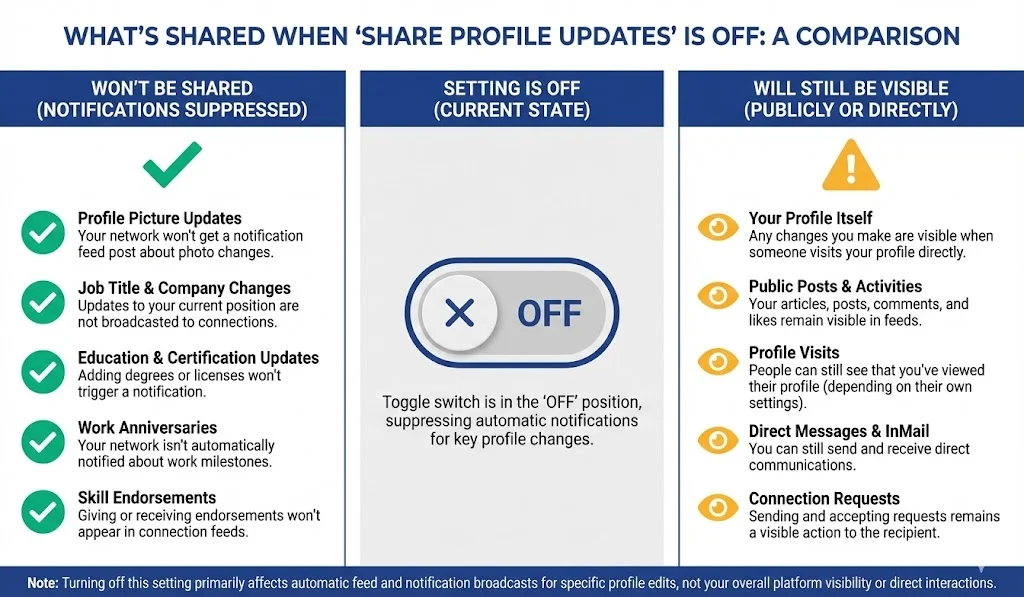
When you disable profile change sharing, here's what happens:
- No automatic post in your connections' feeds
- No notification bell alerts to your connections
- No "So-and-so updated their profile picture" announcements
- Changes to most profile sections (headline, summary, experience)
- Your new profile picture appears immediately on your profile
- Anyone who views your profile will see the new picture
- Your new picture appears in search results
- Comments, posts, and messages show your new picture
- People who have your profile bookmarked will see the change
- LinkedIn's algorithm may still surface your updated profile in "People You May Know" or similar
- Frequent profile viewers might notice the change organically
- Complete invisibility of changes isn't guaranteed, just no explicit notifications
When to Keep Notifications ON vs. OFF
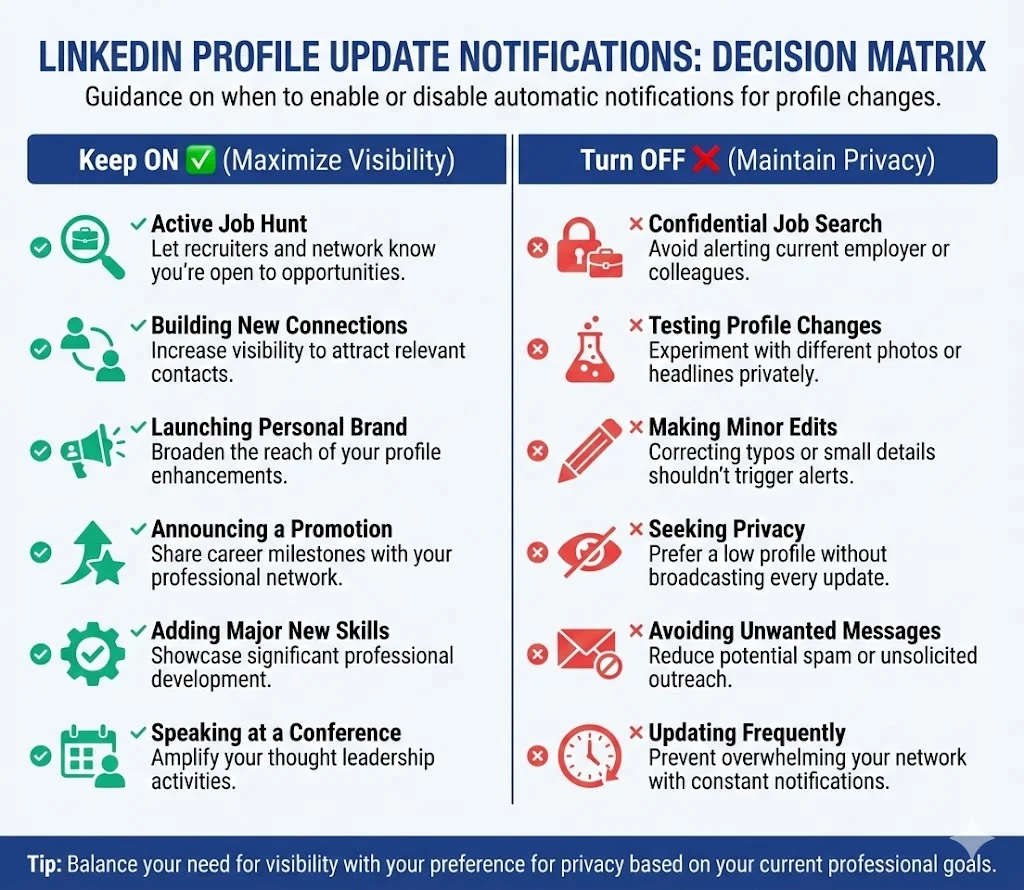
Consider your goals when deciding whether to broadcast profile updates:
- You're actively job hunting and want recruiters to see you're engaged
- You've made significant positive changes worth highlighting
- You're building your personal brand and want visibility
- You've added new credentials, certifications, or achievements
- You're launching a new business or service
- You want to remind your network you exist
- You're just testing a new photo and might change it again soon
- You're making minor tweaks or adjustments
- You're employed and don't want your current employer to think you're job hunting
- You're making multiple updates and don't want to spam your network
- You're in a sensitive job search situation requiring discretion
- You prefer to keep your profile maintenance private
Testing Your New Profile Picture Privately
If you want to test how a new profile picture looks before committing:
- Turn off profile change sharing (Method 1 above)
- Upload your test photo and view it on your profile
- Check multiple views: Full profile, search results thumbnail, comment threads
- Ask a trusted connection (via direct message) how it looks
- Leave it for 24 hours to see if you're happy with it
- Change again if needed (still with sharing off)
- Re-enable sharing once you're satisfied with the final version
Common Issues and Troubleshooting
Solution: LinkedIn moves settings around frequently. Try searching for "sharing" or "network" in the settings search bar. Alternative names include "Profile visibility," "Activity broadcasts," or "Sharing profile edits."
Solution: This occasionally happens due to LinkedIn glitches. You can delete the auto-generated post by finding it in your activity/posts and clicking the three dots menu to delete. If caught quickly, few people will have seen it.
Solution: Go to Settings & Privacy > Visibility and check the current status. If uncertain, make a tiny test change (like adding a period to your headline) and see if it appears in your posts.
Solution: Toggle the setting on/off strategically. Before updates you want private, turn it off. Before updates you want shared, turn it on. This requires manual management but gives you full control.
Best Times to Update Your Profile Picture
If you do want your profile update to be seen, timing matters:
- Best Days: Tuesday-Thursday tend to see the highest LinkedIn engagement
- Best Times: 7-8 AM, 12-1 PM, or 5-6 PM in your timezone (when professionals check LinkedIn)
- Avoid: Late nights, weekends, and holidays if you want maximum visibility
- Job Hunting: Update Sunday evening so recruiters see fresh changes Monday morning
Additional Privacy Settings to Review
While you're in the privacy settings, consider reviewing these related options:
Controls whether LinkedIn suggests other profiles to people viewing yours. Turn off for more privacy.
Choose whether you appear anonymous when viewing others' profiles, or show your name. Anonymous viewing prevents others from knowing you viewed them, but also prevents you from seeing who viewed your profile.
Control who can see your email on your profile (connections only, 1st-degree, etc.)
Controls whether your likes and comments are visible to your network.
What Happens to Your Old Profile Picture
When you update your profile picture on LinkedIn:
- The old picture is replaced immediately everywhere
- LinkedIn does not maintain a gallery of old profile pictures
- Past comments and posts immediately show your new picture (no archive of old photo)
- If you want to keep the old photo, download it before changing
- Some connections might have screenshots if they saved your profile
Recommendation: Always download and save your current profile picture before uploading a new one. This way you can revert if the new photo doesn't work out.
Using Frame-Generator.com for Subtle Updates
One strategy for updating your profile picture without major disruption:
- Keep your base photo the same but add or change a frame
- This signals change (new certification, role, or cause support) without a complete new photo
- Frames can be updated more frequently than base photos without appearing inconsistent
- Seasonal or event-based frames provide natural reasons for updates
- This approach maintains recognition while keeping your profile fresh
Final Checklist: Updating Profile Picture Privately
Before updating:
- ☐ Download current profile picture as backup
- ☐ Go to Settings & Privacy > Visibility
- ☐ Turn OFF "Share profile updates with your network"
- ☐ Verify the setting is disabled
After updating:
- ☐ Check your profile to verify new picture appears
- ☐ View your recent posts/activity to ensure no automatic update post was created
- ☐ Decide whether to re-enable sharing for future updates
- ☐ Test how the new picture appears in different contexts (search, comments, etc.)
Final Thoughts
Updating your LinkedIn profile picture without notifying everyone is completely possible and sometimes strategically wise. Whether you're testing a new photo, making minor adjustments, or simply prefer discretion, LinkedIn's privacy settings give you control over who knows about your profile updates. The key is finding and toggling the "Share profile updates" setting before making changes, then deciding whether to re-enable it for future updates. Remember that while you can prevent notifications, your new picture will still be visible to anyone who views your profile-you're controlling announcements, not visibility. Use this guide to maintain your profile professionally while respecting your network's inbox and maintaining the level of privacy you prefer.
Latest Articles

Frame Your Face with a Custom Banner 🖼️

Spice Up Your LinkedIn Profile with Emojis 💥
Stand Out with 𝑪𝒖𝒔𝒕𝒐𝒎 𝑭𝒐𝒏𝒕𝒔 on LinkedIn 🖋️

LinkedIn Profile Photo Best Practices for 2026

Personal Branding on LinkedIn: A Complete Guide

How to Choose the Right Colors for Your Profile Frame
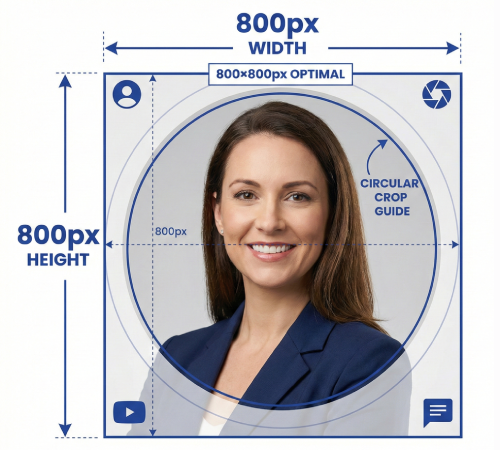
Profile Picture Dimensions Guide for All Social Platforms

Professional vs. Casual Profile Pictures: Which is Right for You?
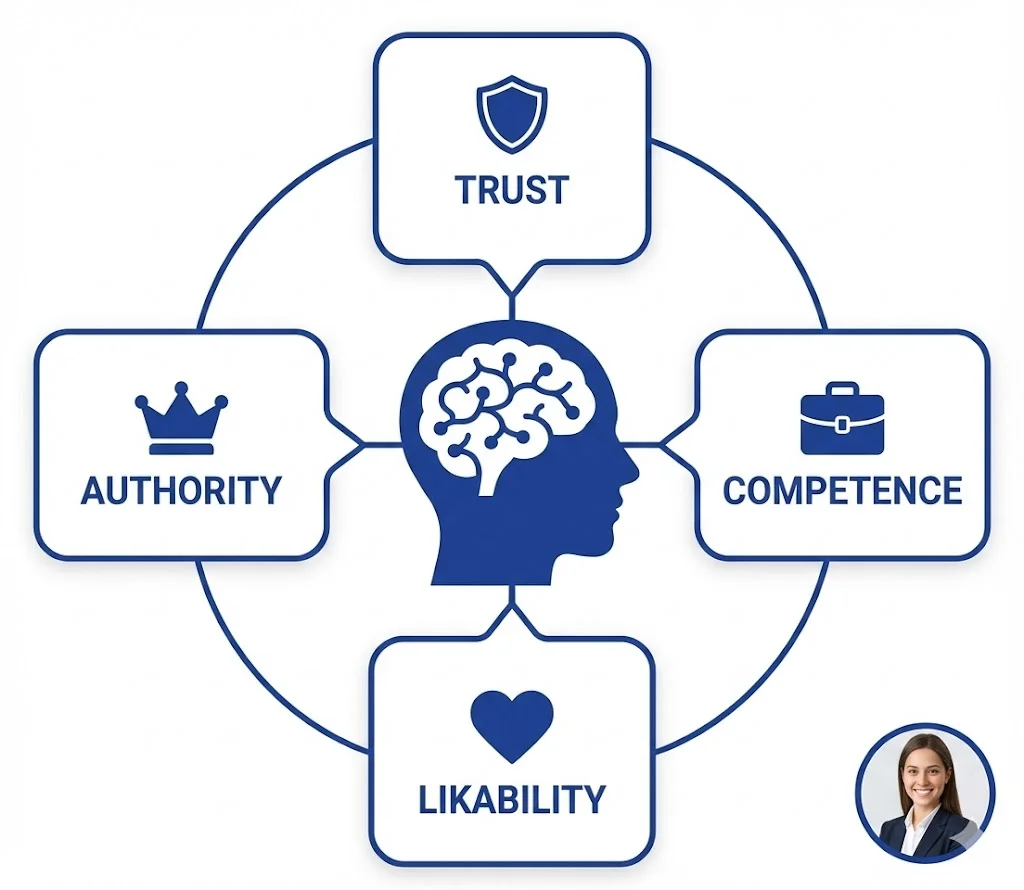
The Psychology of Profile Pictures in Professional Networking
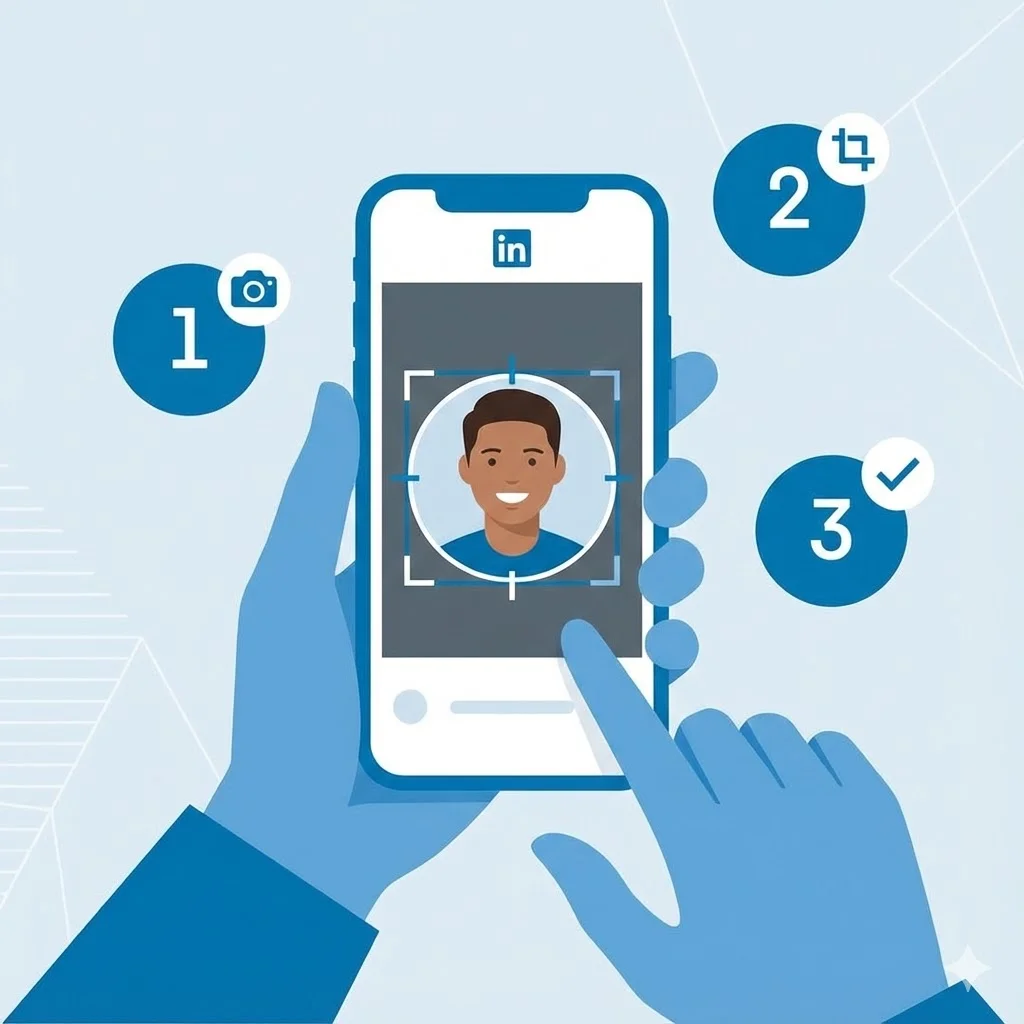
Step-by-Step Tutorial: Creating Your First Custom LinkedIn Frame
15 Common LinkedIn Profile Mistakes (And How to Fix Them)