15 Common LinkedIn Profile Mistakes (And How to Fix Them)
Transform Your LinkedIn Profile from Invisible to Irresistible
Your LinkedIn profile is often the first impression you make on recruiters, potential clients, and professional connections. Yet most professionals unknowingly make mistakes that hurt their visibility, credibility, and opportunities. After helping thousands of professionals improve their profiles through Frame Generator, I've identified the most common mistakes - and more importantly, how to fix them.
Whether you're actively job searching, building your personal brand, or simply maintaining your professional presence, avoiding these mistakes can dramatically improve your LinkedIn results.
Quick Self-Assessment: As you read through this list, check your own profile against each point. Most people have at least 5-7 of these issues. Don't worry - every mistake has a straightforward fix.
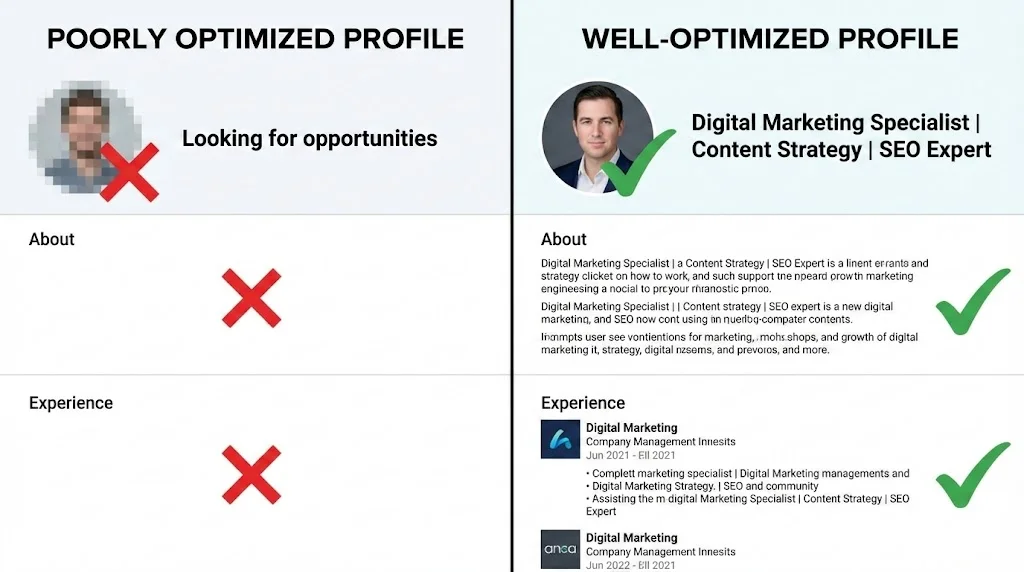
Profile Photo Mistakes
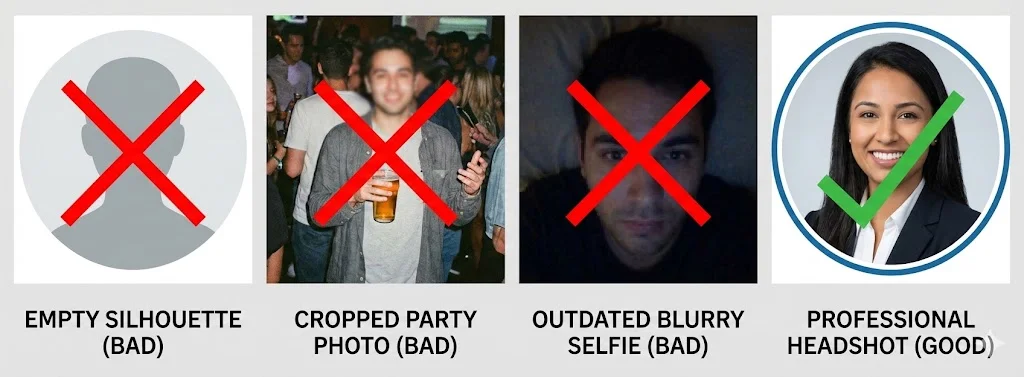
Mistake #1: No Profile Photo
Profiles without photos receive 21 times fewer profile views and 9 times fewer connection requests. Without a photo, you're essentially invisible on LinkedIn.
Upload a professional headshot immediately. Even a decent smartphone photo with good lighting is better than no photo. Your face should be clearly visible and take up 60-70% of the frame.
Mistake #2: Using an Unprofessional Photo
Party photos, vacation shots, photos with other people cropped out, selfies with phones visible, or photos from a decade ago all damage your professional credibility.
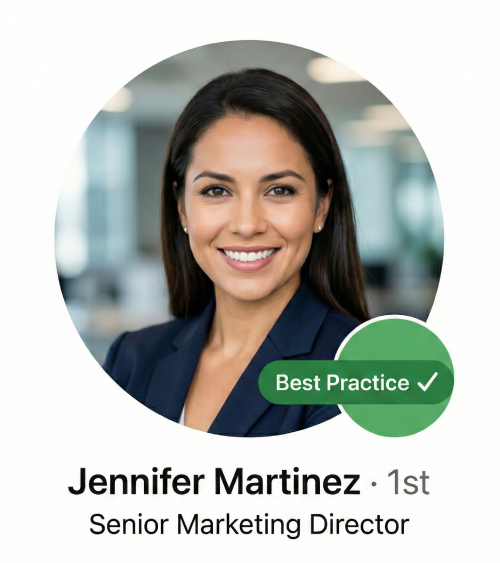
Invest in a proper headshot or take one yourself following best practices: face the camera, use natural lighting from a window, wear professional attire, and choose a neutral background. Update your photo every 1-2 years or whenever your appearance changes significantly.
Mistake #3: Missing the Frame Opportunity
A plain profile photo blends in with millions of others. You're missing an opportunity to communicate your role, highlight achievements, or signal availability - all at a glance.
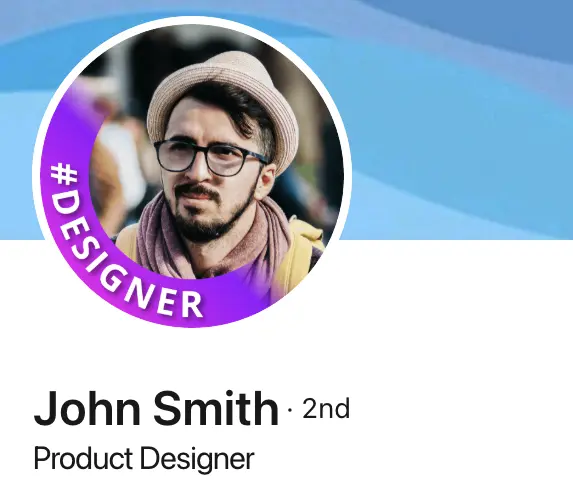
Add a custom frame to your profile picture. Frames like "#OpenToWork," your job title, or certifications instantly communicate key information and help you stand out in feeds and search results.
Headline Mistakes
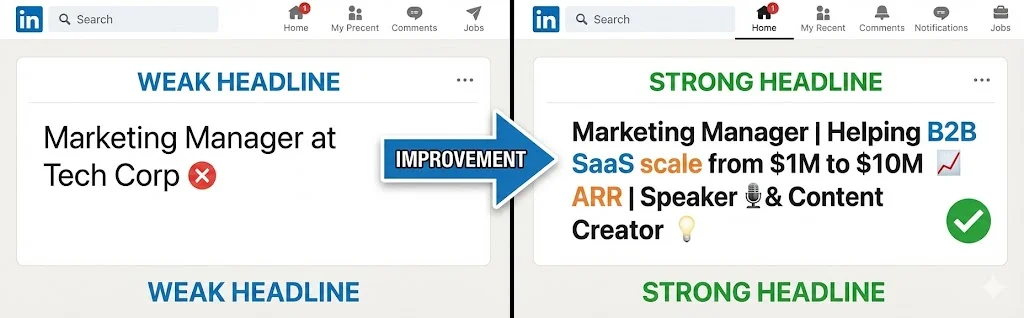
Mistake #4: Using Only Your Job Title
"Marketing Manager at XYZ Company" tells people what you do but not why they should care. It's generic and forgettable.
Transform your headline into a value proposition. Instead of "Marketing Manager," try "Marketing Manager | Helping B2B SaaS Companies Grow Revenue Through Content Strategy | Speaker & Podcast Host." Use all 220 characters available.
Before: "Senior Software Engineer at Tech Corp"
After: "Senior Software Engineer | Building Scalable Cloud Infrastructure | AWS Certified | Helping Startups Ship Faster"
Mistake #5: Keyword Stuffing
Cramming your headline with every possible keyword ("SEO | SEM | PPC | Content | Social | Email | Analytics | Growth | Digital") looks desperate and is hard to read.
Focus on 2-3 key terms that define your expertise. Write for humans first, algorithms second. A clear, readable headline will outperform keyword spam every time.
About Section Mistakes
Mistake #6: Empty or Minimal About Section
Your About section is prime real estate for telling your story and showcasing your value. Leaving it blank or writing just a sentence or two wastes this opportunity.
Write 3-5 paragraphs (or use bullet points) covering: what you do and who you help, your key achievements and expertise, what makes you unique, and a call-to-action. Write in first person - "I help..." sounds more personal than "John helps..."
Mistake #7: Writing in Third Person
"Sarah is a dynamic professional with extensive experience..." sounds like a press release, not a personal connection. It creates distance between you and the reader.
Write in first person. "I'm passionate about helping small businesses grow..." is warmer and more engaging. Save third person for formal bios on company websites.
Mistake #8: No Call to Action
Your About section tells people about you but doesn't tell them what to do next. Visitors read your profile and then... nothing.
End with a clear call to action: "Reach out if you're looking for help with X," "Connect with me to discuss Y," or "Visit my website to learn more." Guide your visitors to take action.
Experience Section Mistakes
Mistake #9: Listing Duties Instead of Achievements
"Responsible for managing team of 5" or "Handled customer inquiries" describes what you were supposed to do, not what you accomplished. Everyone in your role has similar duties.
Focus on achievements and results. Use numbers whenever possible: "Grew team from 5 to 15 while reducing turnover by 40%" or "Resolved 500+ customer inquiries monthly with 98% satisfaction rating." Show impact, not just activity.
Mistake #10: Missing Media and Links
Your Experience section is text-only, missing opportunities to showcase your work visually. No links to projects, presentations, articles, or portfolios.
Add media to your experience entries: presentations, videos, articles you've written, projects you've completed, or press coverage. Visual elements catch attention and provide proof of your claims.
Network and Engagement Mistakes
Mistake #11: Not Customizing Connection Requests
Sending the default "I'd like to add you to my professional network" message (or worse, no message at all) gets ignored or rejected. It shows no effort or genuine interest.
Always add a personalized note. Mention how you found them, what you have in common, or why you want to connect. A 2-3 sentence personalized message dramatically increases acceptance rates.
Mistake #12: Being Invisible (Never Posting or Engaging)
Your profile is complete but you never post, comment, or engage with others' content. You're missing the "social" part of social networking.
Aim to engage at least a few times per week. Comment thoughtfully on others' posts, share relevant articles with your insights, or post original content about your expertise. Visibility drives opportunities.
Technical and Settings Mistakes
Mistake #13: Wrong Privacy Settings
Your profile isn't fully public, your activity broadcasts changes to your network (alerting your employer), or recruiters can't find you in searches.
Review your settings: Make your profile public, turn off activity broadcasts if you're job searching quietly, and enable "Open to Work" privately (visible only to recruiters) if relevant.
Mistake #14: Missing Contact Information
Your profile doesn't include an email address or website, making it hard for opportunities to reach you outside of LinkedIn.
Add your professional email and any relevant links (portfolio, personal website, booking calendar) to your Contact Info section. Make it easy for people to reach you through multiple channels.
Mistake #15: Ignoring Your LinkedIn URL
Your profile URL is the default mess of random numbers and letters (linkedin.com/in/john-smith-8a7b6c5d4e3f2g1h). It looks unprofessional and is impossible to remember.
Customize your URL to linkedin.com/in/yourname or linkedin.com/in/yourname-title. This is easier to share on business cards, email signatures, and resumes.
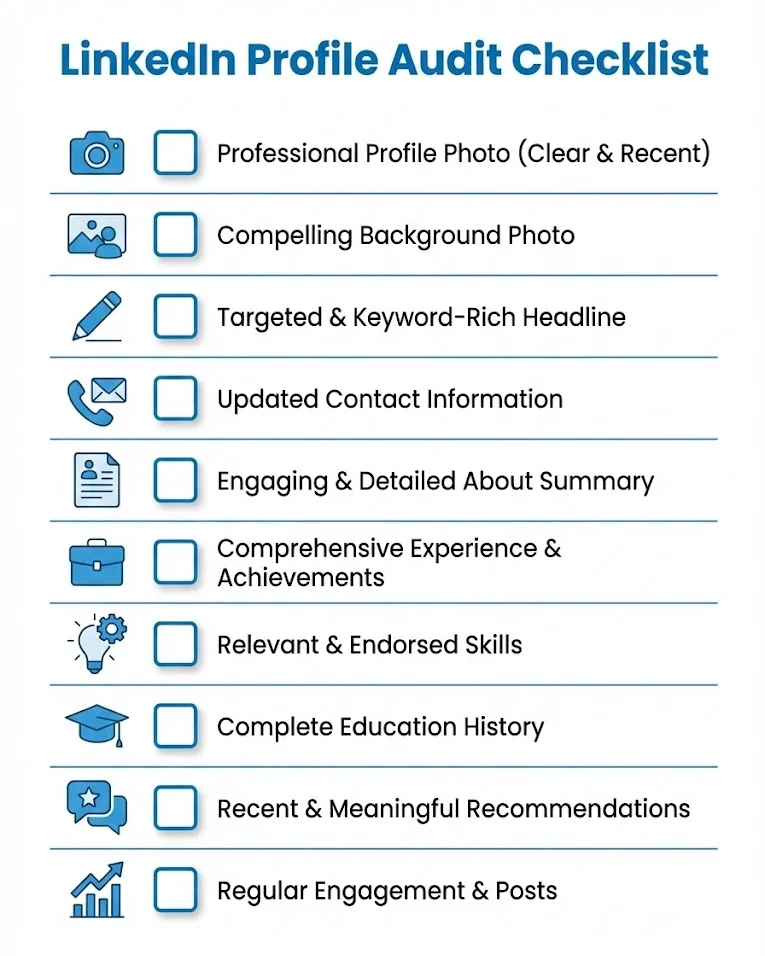
Quick Reference: Profile Audit Checklist
Take Action Now
You don't have to fix everything at once. Start with the three mistakes that are costing you the most:
- Your photo - If it's missing, outdated, or unprofessional, fix this first. Consider adding a custom frame to stand out.
- Your headline - Transform it from a job title to a value proposition in 5 minutes.
- Your About section - Write or rewrite it using first person with a clear call to action.
These three changes alone will dramatically improve how your profile performs. Then work through the rest of the list over the coming weeks.
Ready to make your profile picture stand out? Start with a professional preset frame or create your own custom design. It takes less than 2 minutes and makes an immediate visual impact.
Latest Articles
Frame Your Face with a Custom Banner 🖼️
Spice Up Your LinkedIn Profile with Emojis 💥
Stand Out with 𝑪𝒖𝒔𝒕𝒐𝒎 𝑭𝒐𝒏𝒕𝒔 on LinkedIn 🖋️
LinkedIn Profile Photo Best Practices for 2026
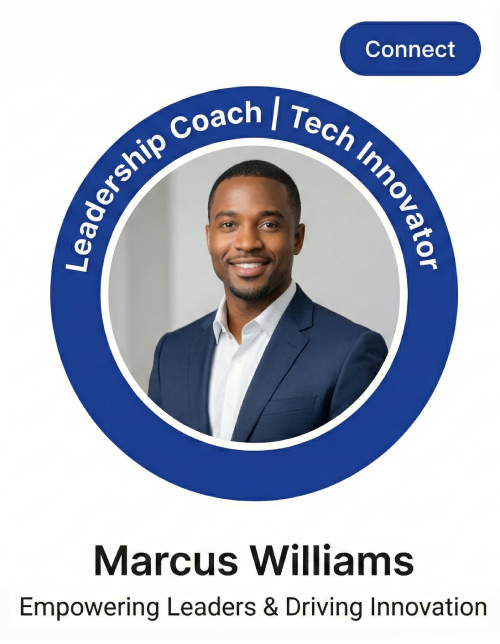
Personal Branding on LinkedIn: A Complete Guide
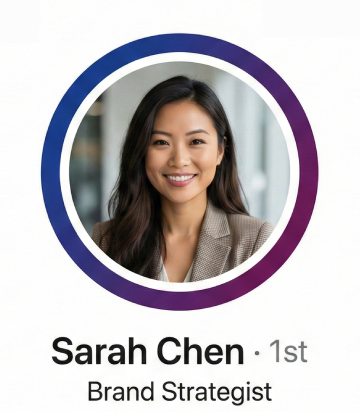
How to Choose the Right Colors for Your Profile Frame
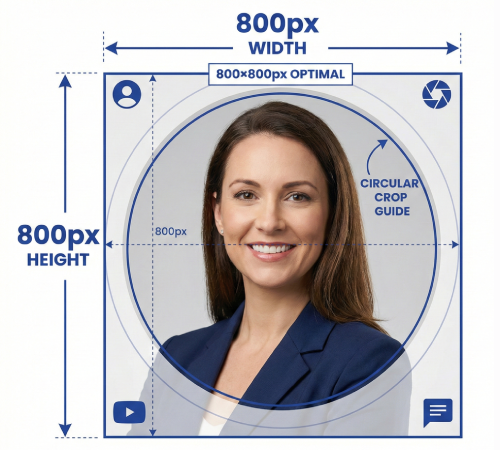
Profile Picture Dimensions Guide for All Social Platforms
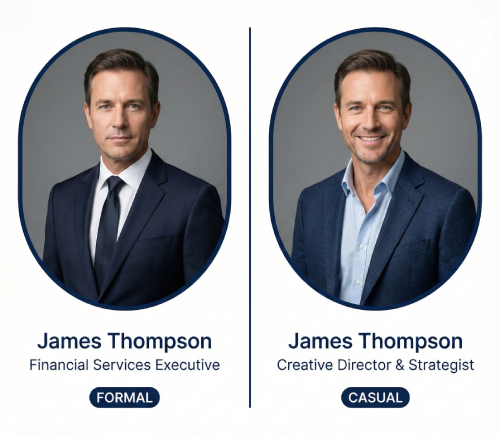
Professional vs. Casual Profile Pictures: Which is Right for You?
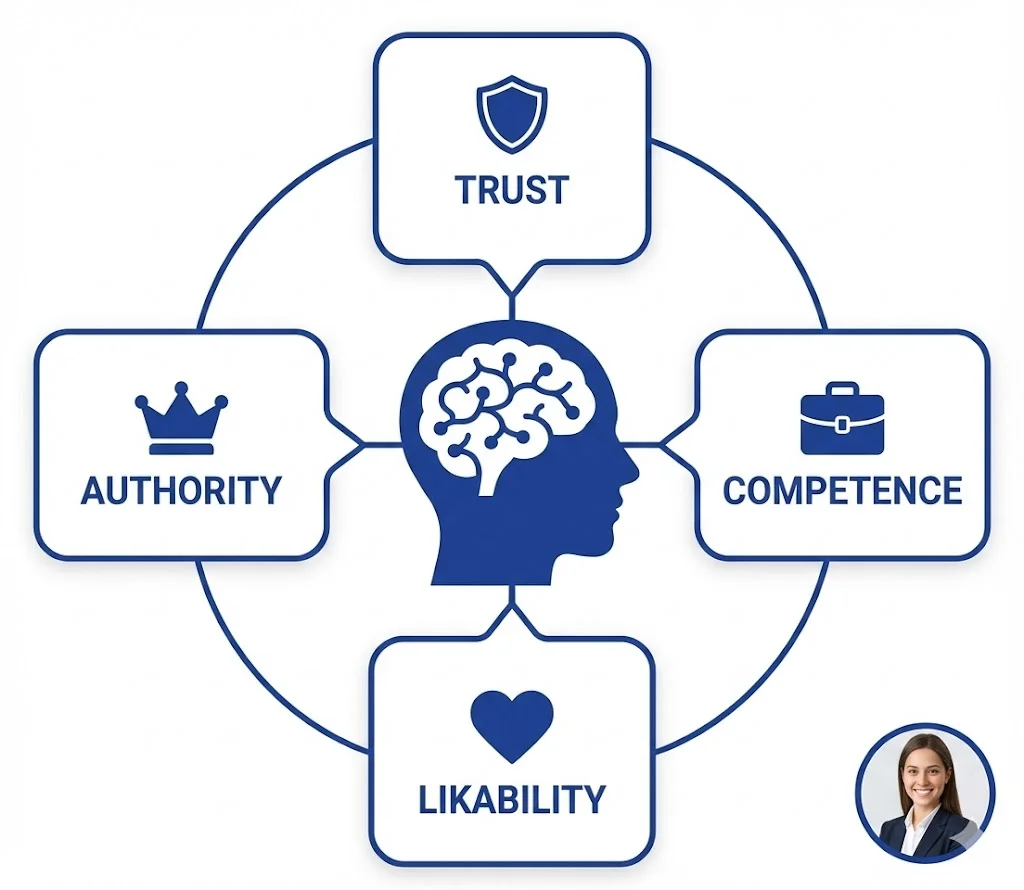
The Psychology of Profile Pictures in Professional Networking
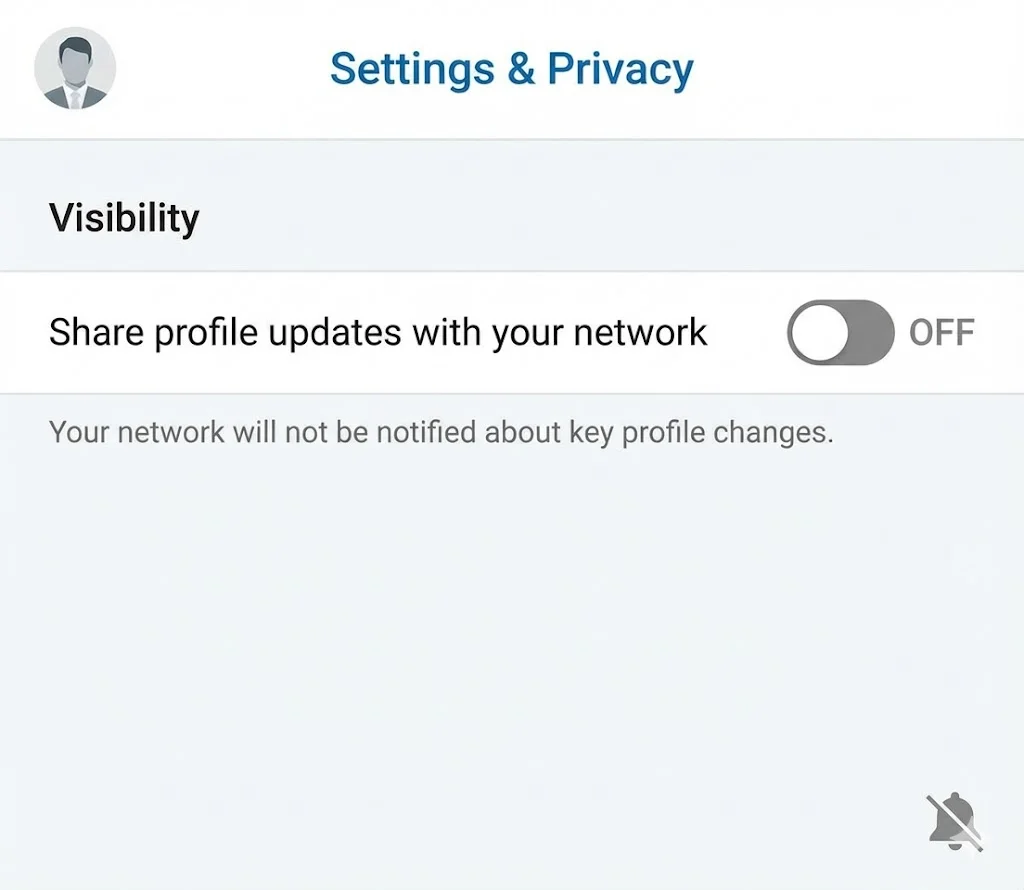
How to Update Your LinkedIn Profile Picture Without Notifying Everyone
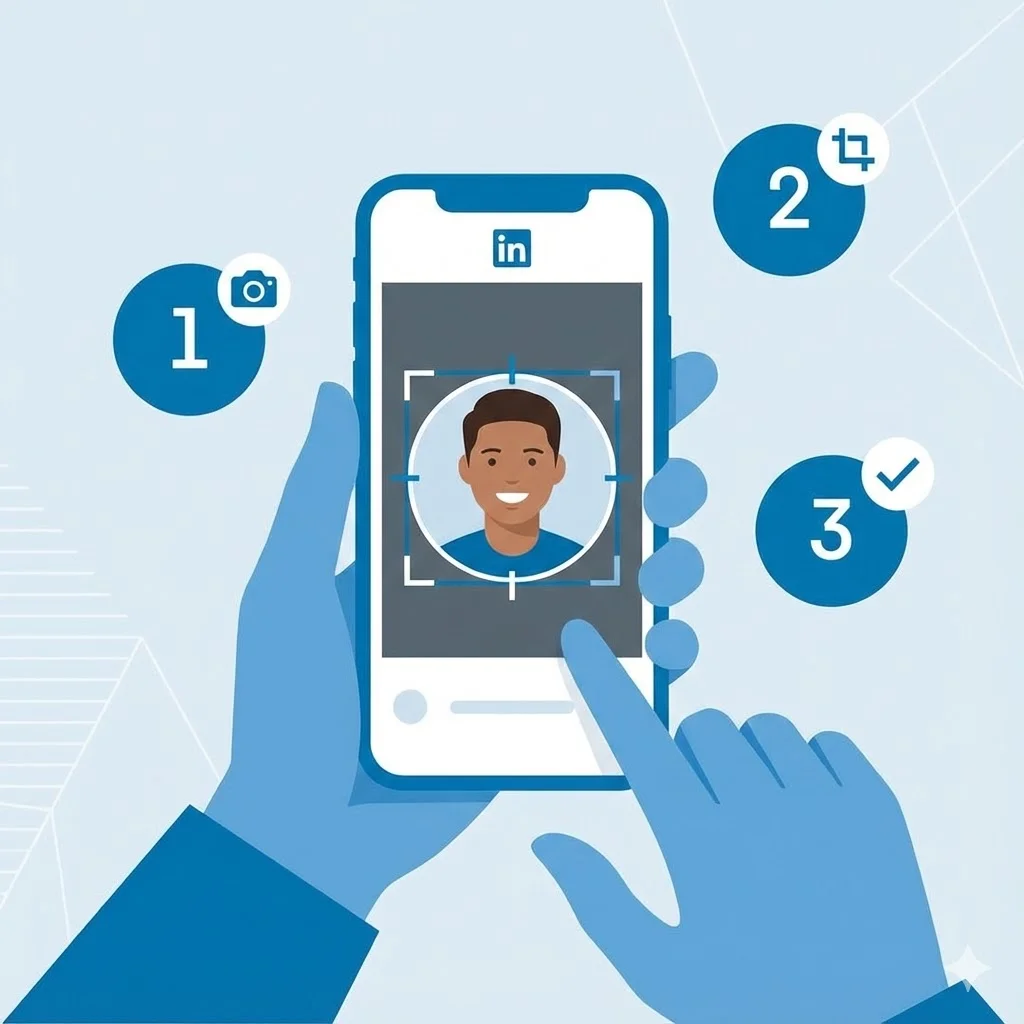
Step-by-Step Tutorial: Creating Your First Custom LinkedIn Frame