Frame Your Face with a Custom Banner 🖼️
Elevate Your LinkedIn Presence with a Custom Profile Picture Frame
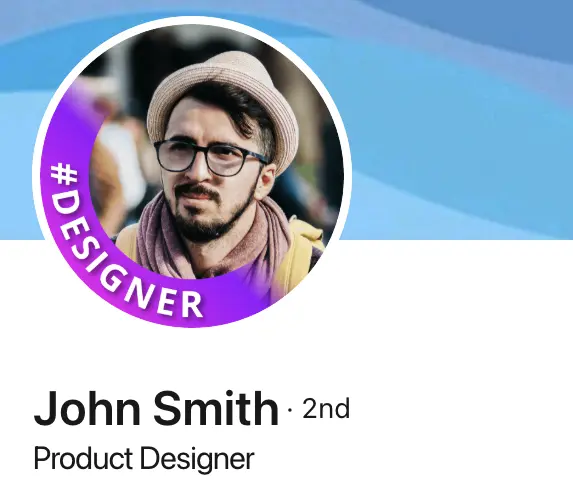
Your LinkedIn profile picture is the first thing people see. Make it count! A custom frame around your photo can help you stand out and communicate a message that sets you apart from the millions of other professionals on the platform.
Think of it as a visual handshake that introduces you and your personal brand before someone even reads your headline. In a sea of generic headshots, a thoughtfully designed frame immediately signals that you're someone who pays attention to details and cares about how they present themselves professionally.
Why I Built Frame Generator: As a developer, I noticed that professionals were spending hours trying to add simple frames to their profile pictures using complex photo editing software. I wanted to create a tool that anyone could use in seconds, without design skills or expensive software. That's why Frame Generator is completely free and works right in your browser.
The Psychology Behind Profile Picture Frames
Research shows that people form first impressions within milliseconds of seeing a face. Your LinkedIn profile picture, including any frame you add, contributes to snap judgments about your trustworthiness, competence, and likability. A well-chosen frame doesn't just decorate your photo - it actively shapes how others perceive you.
Frames serve as visual cues that communicate information before someone reads a single word on your profile. A "#OpenToWork" frame tells recruiters you're available. A certification badge shows your credentials. A company-branded frame demonstrates team pride. Each frame choice sends a specific message to your network.
Why Use a Custom Frame?
- Professional Branding: Use a frame with your company logo or brand colors to reinforce your professional identity and create a consistent look across your online presence. This is especially valuable for entrepreneurs, freelancers, and anyone building a personal brand.
- Cause Support: Show your support for causes you care about with a relevant frame. Whether it's sustainability, diversity initiatives, or social causes, frames can be powerful conversation starters that showcase your values to like-minded professionals.
- Career Transitions: Frames like "#OpenToWork" or "Seeking New Opportunities" signal to recruiters that you're actively looking, increasing your visibility in recruiter searches.
- Certifications and Achievements: Highlight your credentials with frames that showcase certifications like "AWS Certified," "PMP," or "CPA." This adds immediate credibility.
- Event and Conference Promotion: Speaking at an event? Attending a major conference? A custom frame can promote your participation and help you connect with other attendees.
- Seasonal Themes: Add a touch of festivity with holiday-themed frames or celebrate special occasions like work anniversaries or promotions.
Real-World Use Cases
Here are some practical examples of how professionals use custom frames effectively:
The "#OpenToWork" frame has become ubiquitous on LinkedIn for good reason - it works. Recruiters report that candidates with this frame are easier to identify when sourcing. Beyond the official LinkedIn frame, custom alternatives like "Available for Freelance" or "Seeking Remote Roles" can be more specific to your situation.
Frames that highlight your specialty ("UX Consultant" or "Marketing Strategist") help potential clients immediately understand what you offer. Adding your brand colors creates consistency with your website and other marketing materials.
Showcase your tech stack or certifications. Frames like "React Developer," "Cloud Architect," or certification badges make your expertise visible at a glance.
Many companies encourage employees to use branded frames during product launches, hiring pushes, or company events. It's a simple way to show team unity and amplify company messaging.
Tips for Effective Frame Usage
To make the most of your custom frame, keep these tips in mind:
- Keep It Professional: Ensure the frame complements your professional image and doesn't appear overly casual or distracting. What works on Instagram might not work on LinkedIn.
- Clear Visibility: Make sure your face is still the focal point and not obscured by the frame. The frame should enhance, not hide, your professional headshot.
- Color Coordination: Choose frame colors that complement your photo's background and your outfit. Clashing colors can be distracting and appear unprofessional.
- Readability: If your frame includes text, ensure it's large enough to read in LinkedIn's circular thumbnail format. Test how it looks at small sizes.
- Regular Updates: Change your frame periodically to keep your profile fresh and engaging. Align it with seasons, campaigns, or projects you're working on.
- Consistency: Use similar frames across different platforms (LinkedIn, Twitter, email signature) for brand recognition.
How to Create Your Custom Frame with Frame Generator
Creating a custom frame for your LinkedIn profile is simple with our free tool:
- Upload Your Photo: Go to Frame Generator and upload your professional headshot. We recommend a high-quality image that's at least 400x400 pixels.
- Choose a Preset or Customize: Browse our preset library for ready-made designs, or create your own custom frame with your preferred colors, text, and styling.
- Adjust Position and Size: Use the editor to position your photo within the frame. Ensure your face is centered and clearly visible.
- Preview at Different Sizes: Check how your framed photo looks at thumbnail size, as that's how most people will see it on LinkedIn.
- Download and Upload: Download your framed image and upload it directly to LinkedIn as your profile picture.
Privacy First: Frame Generator processes all images directly in your browser. Your photos are never uploaded to our servers, ensuring complete privacy and security.
Common Mistakes to Avoid
- Too Busy: Frames with too many elements or competing colors can be overwhelming and detract from your professional image.
- Outdated Frames: Keeping a holiday frame up in March or an event frame months after the event looks neglected. Update regularly.
- Wrong Context: Using playful or casual frames in conservative industries (law, finance) may seem unprofessional. Know your audience.
- Text Too Small: If people can't read your frame text in the thumbnail view, it's not serving its purpose.
- Hiding Your Face: The frame should complement your photo, not obscure it. Your face should remain clearly visible.
When to Update Your Frame
Consider updating your frame when:
- You're starting a job search or changing career focus
- You've earned a new certification or achievement
- Your company is launching a campaign or hiring initiative
- Seasonal changes or holidays approach
- You're attending or speaking at a conference
- You want to show support for a cause or movement
- Your current frame has been up for more than 3-6 months without purpose
Showcase Your Unique Self
By adding a custom frame to your LinkedIn profile picture, you can make a subtle yet powerful statement. It's a simple way to elevate your online presence, showcase your personality, and leave a lasting impression on those who visit your profile. In a competitive job market where standing out matters, every detail counts - including the frame around your face.
Ready to transform your LinkedIn profile picture? Try using one of our presets or create your own custom frame in seconds. It's completely free, no account required, and your images never leave your device.
Latest Articles

Spice Up Your LinkedIn Profile with Emojis 💥
Stand Out with 𝑪𝒖𝒔𝒕𝒐𝒎 𝑭𝒐𝒏𝒕𝒔 on LinkedIn 🖋️
LinkedIn Profile Photo Best Practices for 2026
Personal Branding on LinkedIn: A Complete Guide
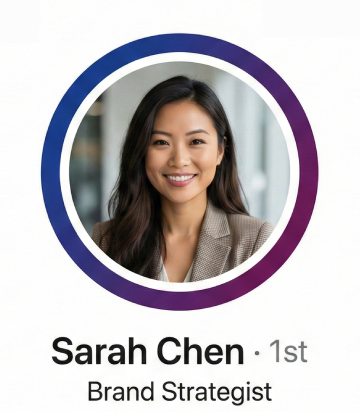
How to Choose the Right Colors for Your Profile Frame
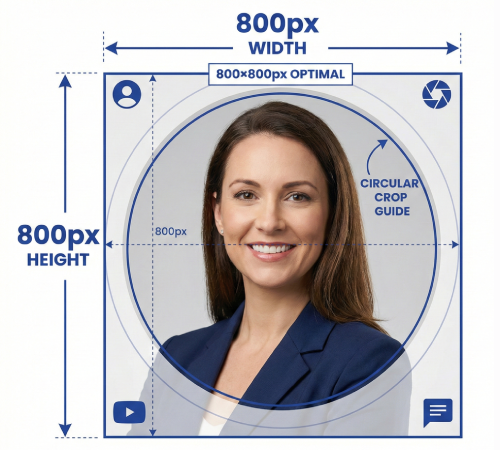
Profile Picture Dimensions Guide for All Social Platforms
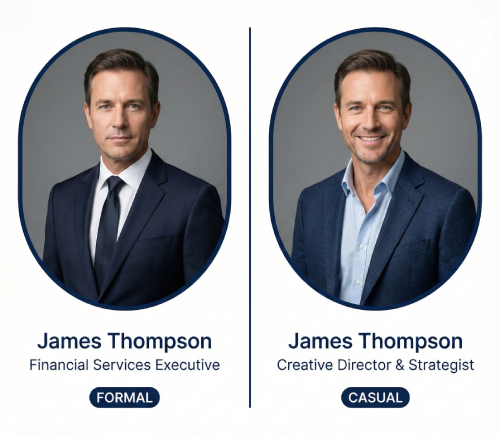
Professional vs. Casual Profile Pictures: Which is Right for You?
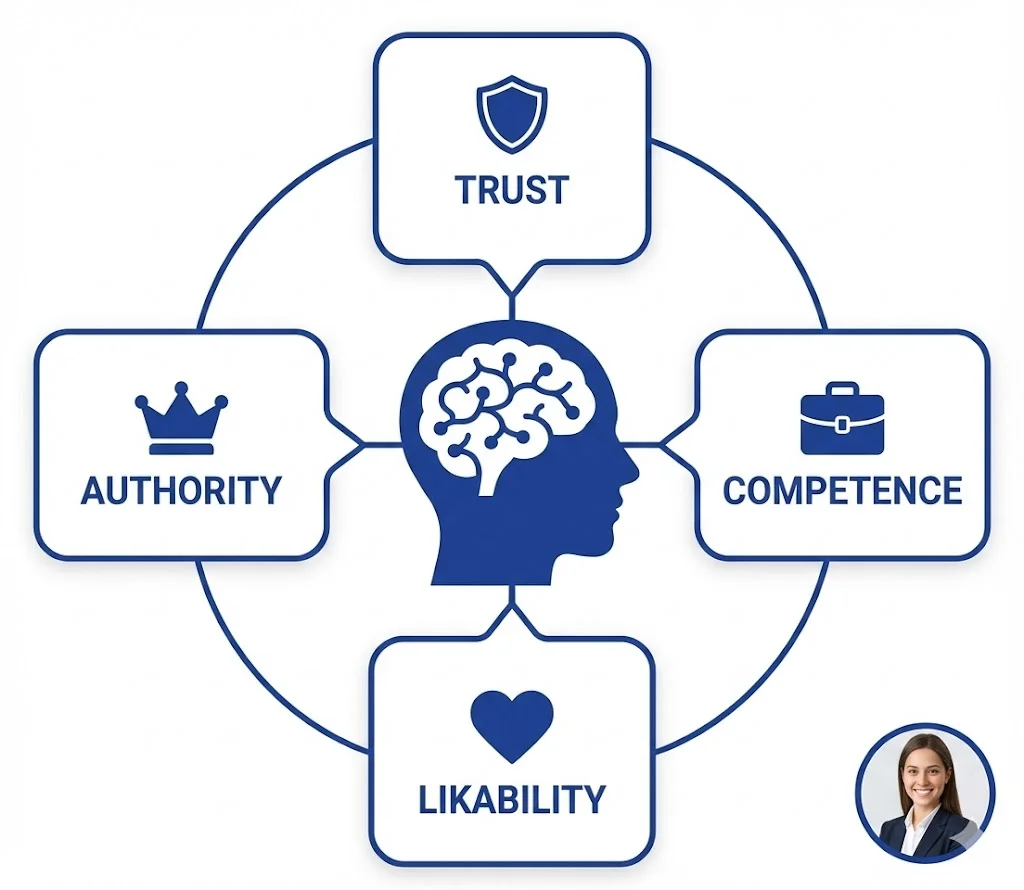
The Psychology of Profile Pictures in Professional Networking
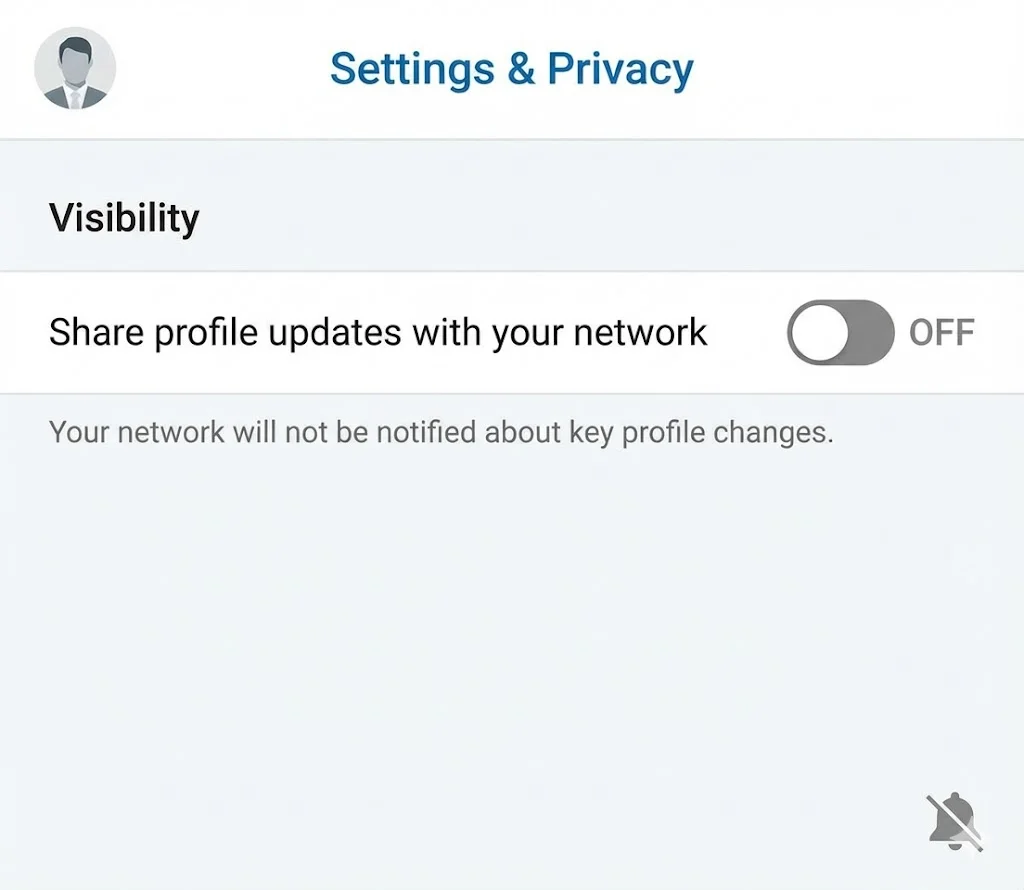
How to Update Your LinkedIn Profile Picture Without Notifying Everyone
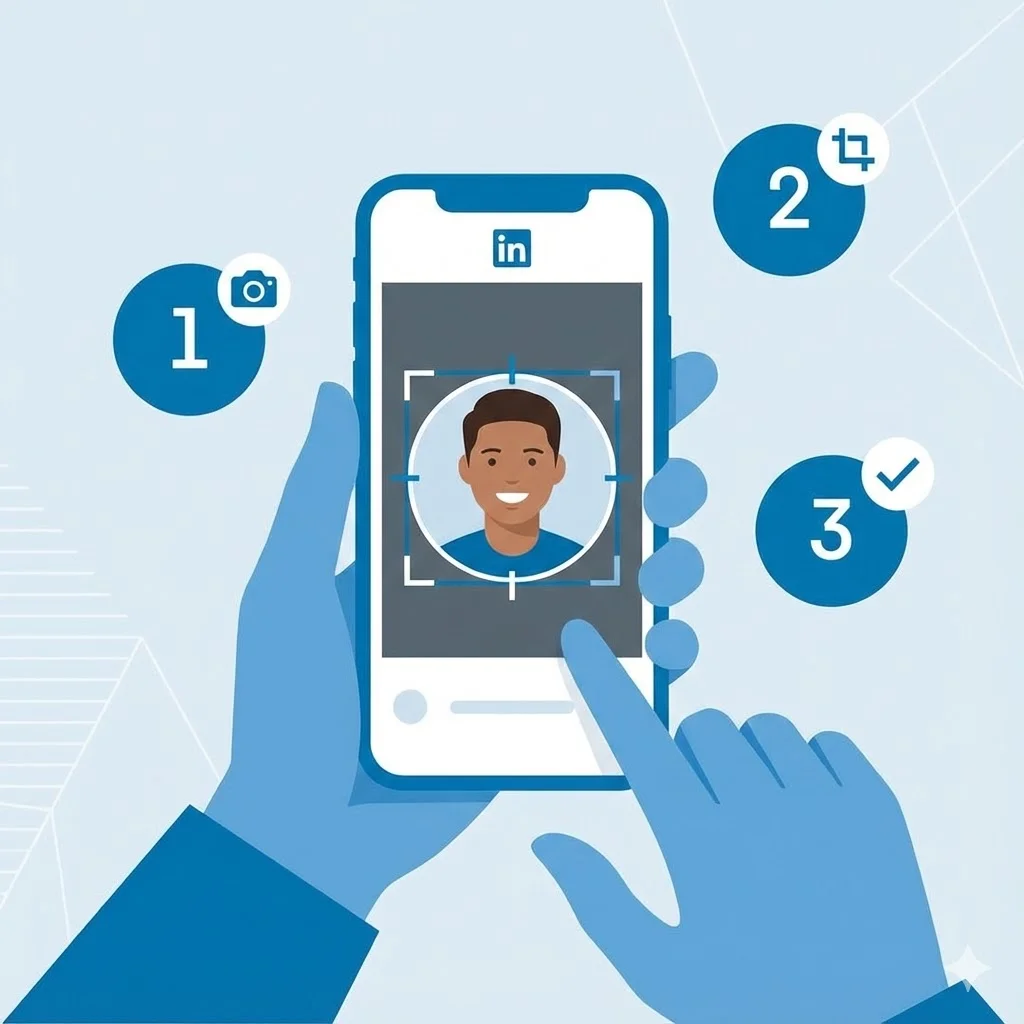
Step-by-Step Tutorial: Creating Your First Custom LinkedIn Frame
15 Common LinkedIn Profile Mistakes (And How to Fix Them)